 Telepult.Web
3D masks and avatars on a video call
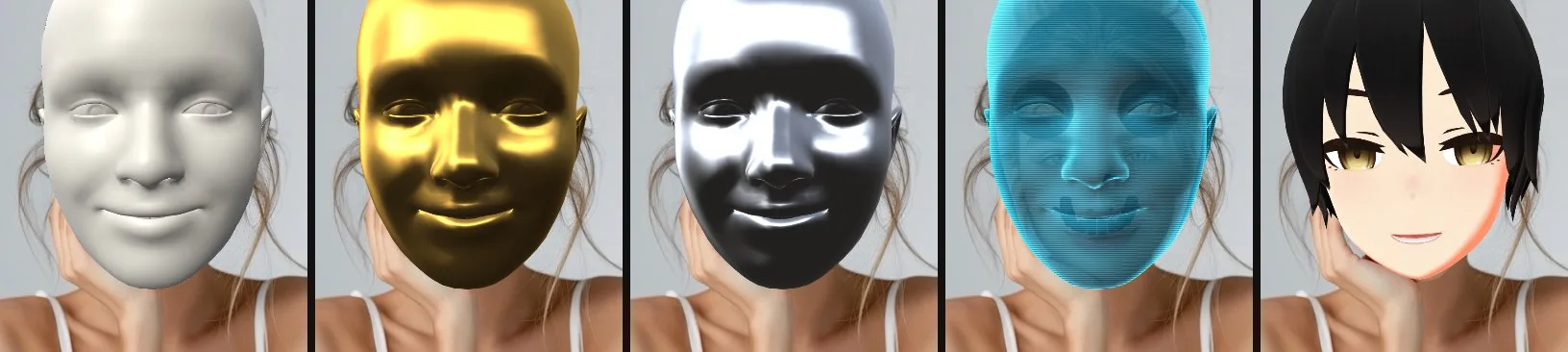
In 6.0 the Studio goes beyond flat masks: 3D accessories stay on your head and avatars copy your facial expressions. The fit is adjusted to your face with sliders.
Step by step
- Install the extensionAdd Telepult.Web from the Chrome Web Store — in Chrome, Edge, Opera, Brave, Yandex Browser or another Chromium browser that supports Chrome extensions. It is free. Firefox has a separate build on addons.mozilla.org.
- Open a meetingOpen a meeting on any supported platform (Zoom, Meet, Teams, Telemost, MTS Link and others) and turn on your camera. The remote button appears — in the call toolbar or as a floating button.
- Open the StudioIn the masks section, pick a 3D mask or an avatar from the preview tiles.
- Adjust the fitSize and offset sliders appear under the preview. The fit is saved for each mask separately.
What is there
- 3D accessories: glasses, a bucket hat, a gas mask and more
- Avatars with facial expressions: blinking, smile, mouth, eyebrows
- 2D masks are still in the same Studio
Load on your computer
3D is heavier than flat masks. On a weak PC, turn on eco mode or pick a lighter effect.
Try it for free
Telepult.Web installs in a minute: Chrome, Edge, Opera, Brave, Yandex Browser and other Chromium browsers — from the Chrome Web Store. There is a Firefox version too.
Install from the Chrome Web StoreFAQ
Do the others see the mask?
Yes, it is drawn into your video stream.
Do I need a green screen?
No. The mask follows your face using the camera image.