Fun for the whole team, your screen in your camera and a remote that listens to your voice
The biggest update since 6.0: a wheel of fortune and a group photo of the whole call, a polygraph and shadow clones, screen sharing right inside your camera, a business card instead of the camera, a background guard, voice commands and a new panel with groups, pinning and search.
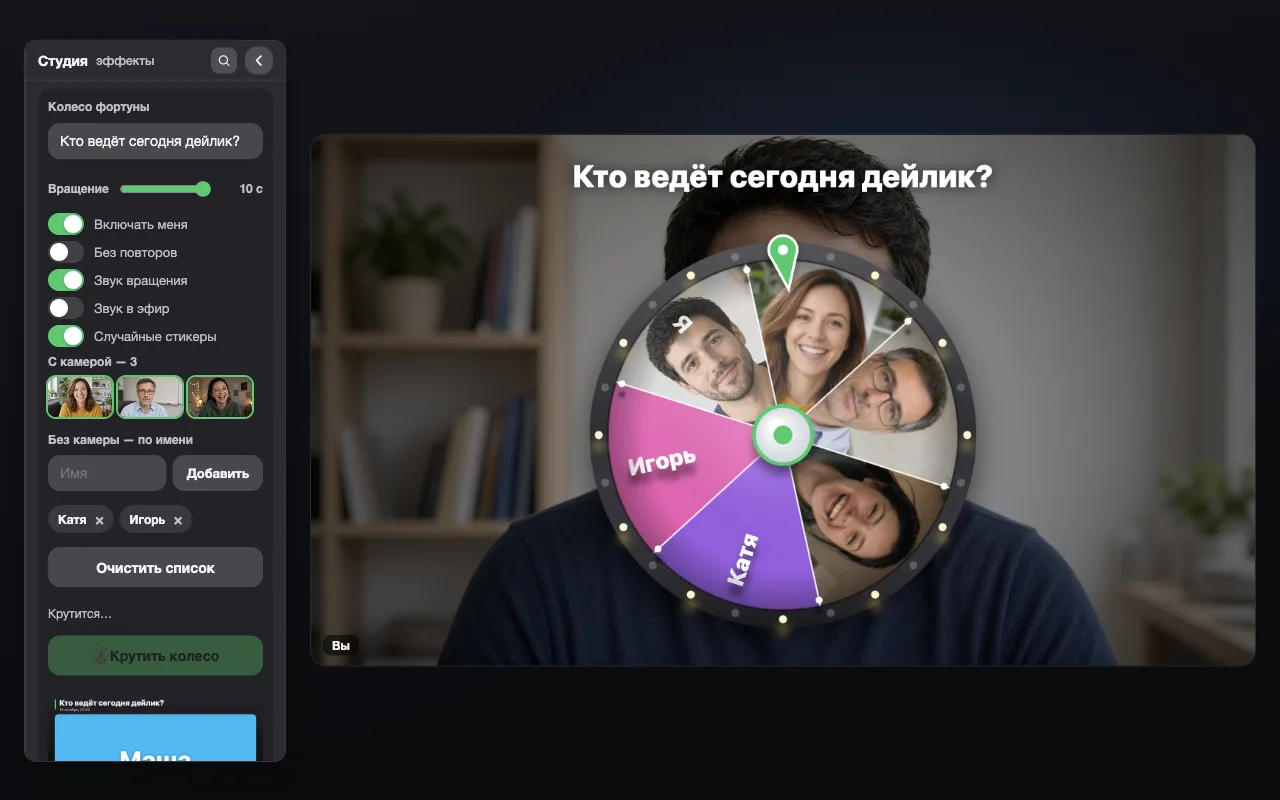
Who runs the daily, who does the review, who pays for pizza — the wheel spins right in your video and everyone sees the result.
Where: Studio → Fun → Wheel of fortune
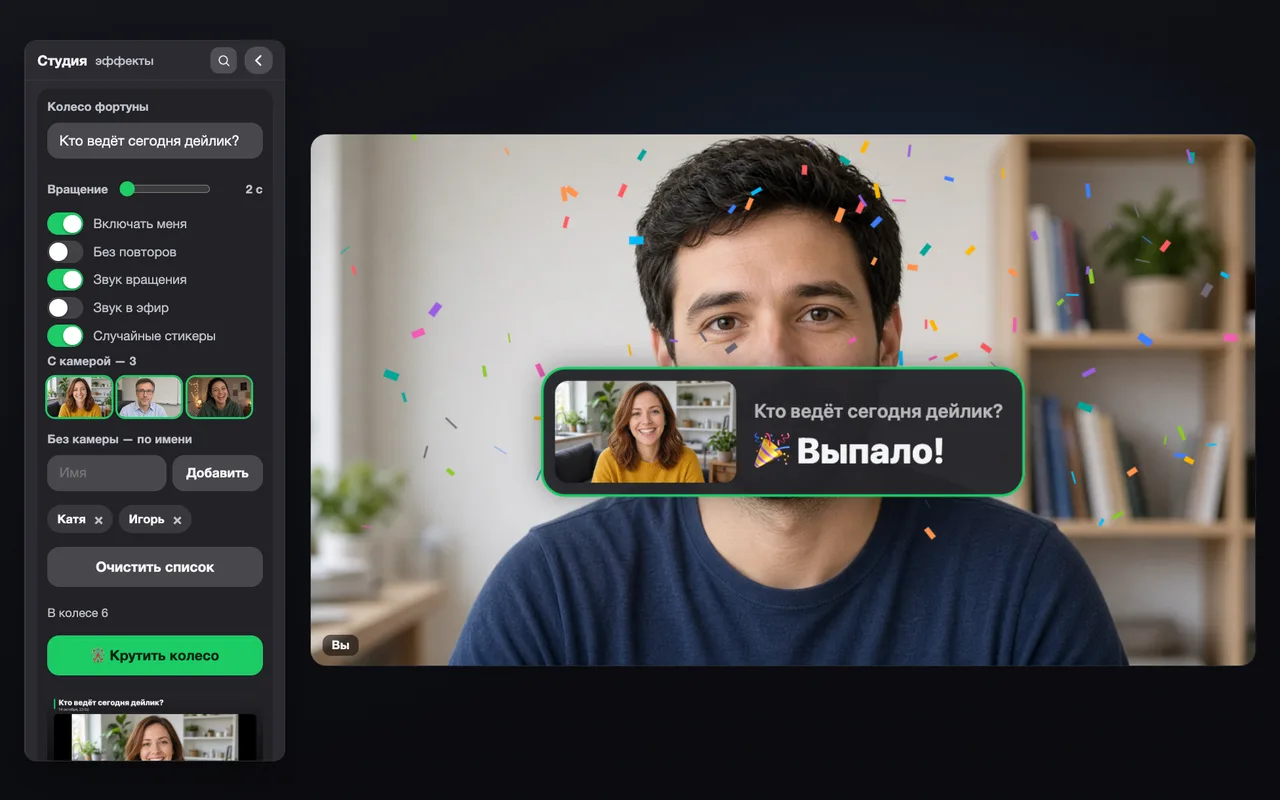
The wheel of fortune spinning in the video: sectors with participant frames and namesThe wheel has stopped: a “Winner!” badge with the chosen participant and confetti
Why it matters
Arguing about who runs today eats minutes of every call. The wheel decides in seconds and fairly: everyone watches it spin and sees the result for themselves. It works on every platform — sectors are made of everyone with a camera on, plus any names you type in.
How to use it
Open the wheelIn the Studio, expand the Fun group and find the Wheel of fortune block. Or just say “Pult, spin the wheel” in Russian.
Ask a questionThe field on top is the title above the wheel. It defaults to “Who runs the daily today?”; write your own: “Who shares the screen?”, “Whose bug do we fix first?”.
Gather the participantsEveryone with a camera on joins the wheel automatically, with a live still frame. Add people without a camera by name in the “No camera — by name” field.
SpinPress Spin the wheel. After 2–10 seconds (the Spin slider) the wheel stops and shows a “Winner!” badge with a frame or a name and confetti.
Share the resultSave the badge as an image, copy it to the chat or show it to everyone once more.
Tips
No repeats — a participant who has won will not come up again until everyone has. Handy for a queue of talks.
Include me — decide whether you take part yourself.
Spin sound — the familiar rattle while the wheel turns; Sound on air — a finale sound from the sound panel at the moment of the result.
Random sound and Random stickers make every draw different.
The result stays for 4 seconds as a neat badge, not a full-screen banner — the conversation goes on.
Say in Russian:Пульт, крути колесоПульт, колесо фортуны
📸Group photo of the meeting
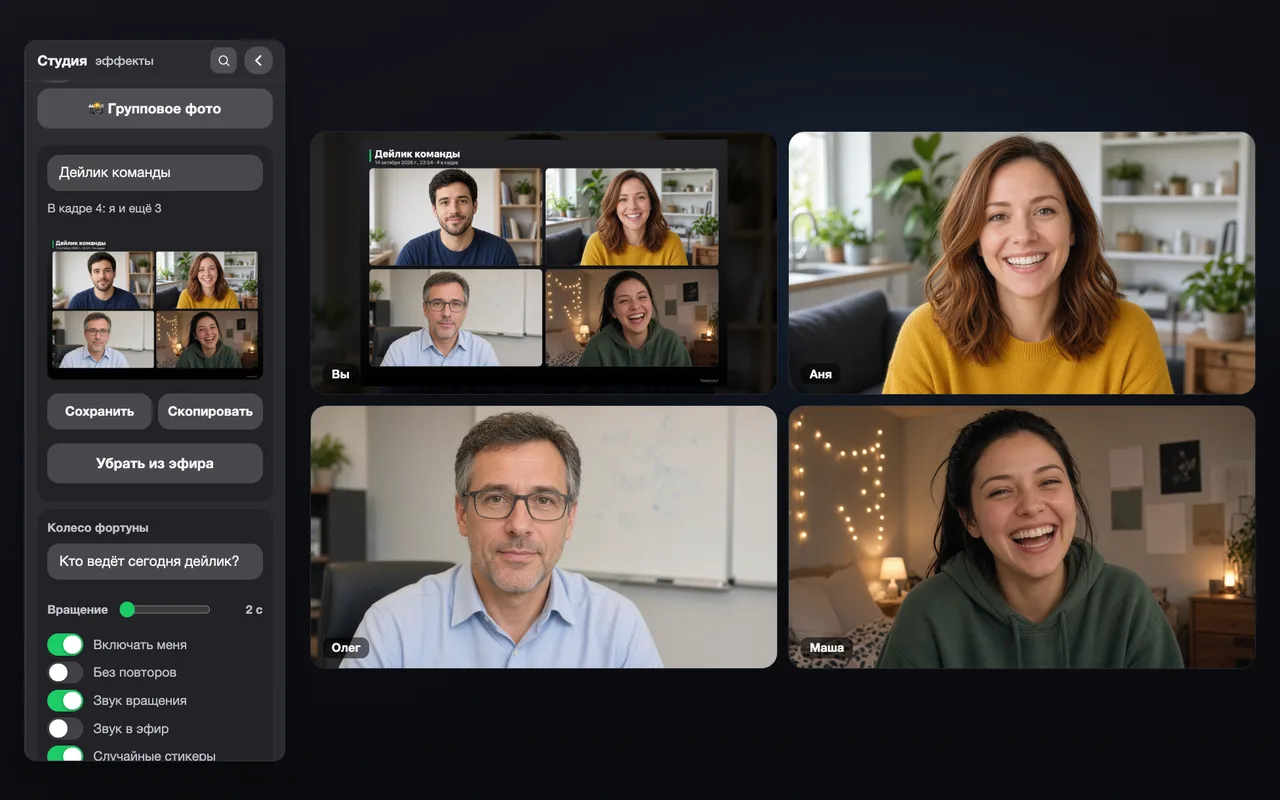
A 3-2-1 countdown in your video — and a collage of everyone’s cameras with a caption. Save it, copy it or show it to all.
Where: Studio → Fun → Group photo
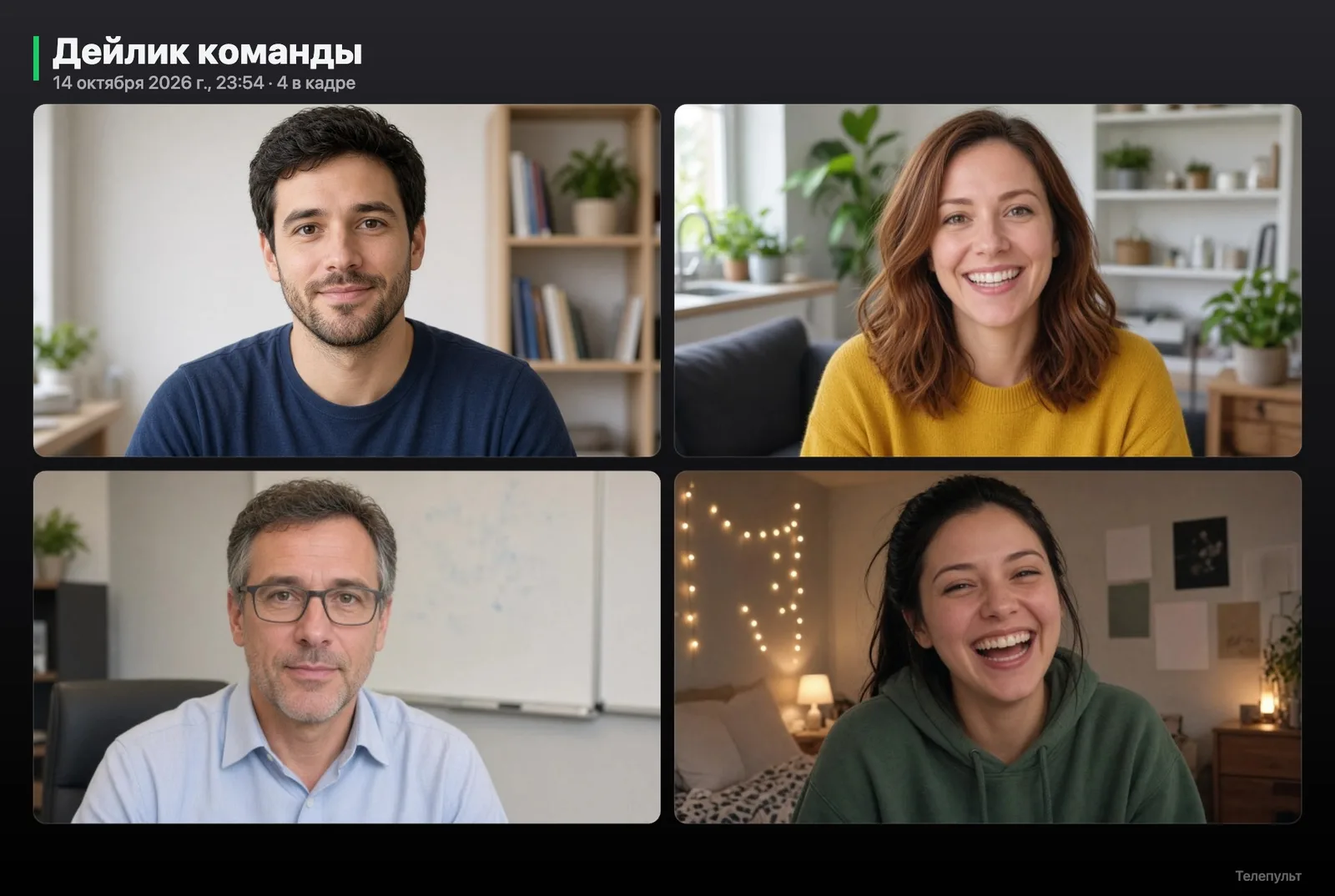
Group photo: a collage of four participants’ cameras with the caption “Team daily” in the videoA finished group photo collage in Full HD
Why it matters
A screenshot of a call is a crooked grid with the platform UI, stray cursors and cut-off names. The group photo builds a neat collage of everyone visible in the meeting, with a caption and a date. Perfect for retros, a colleague’s birthday, a new team’s first call or an event report.
How to use it
Write a captionFor example “Team daily” or “Sprint 42 retro” — it goes onto the collage.
Press Group photoA big 3-2-1 countdown runs in your video — everyone has time to smile.
Take the collageA 1920-pixel-wide image: Save — as a file, Copy — straight to the chat, Show to all — for a few seconds in your video.
Tips
Every participant with a camera on gets into the collage; there is no need to switch the platform to grid view.
Say in Russian:Пульт, групповое фотоПульт, сфоткай всехПульт, покажи фото всемПульт, сохрани фото
🎨Frame style
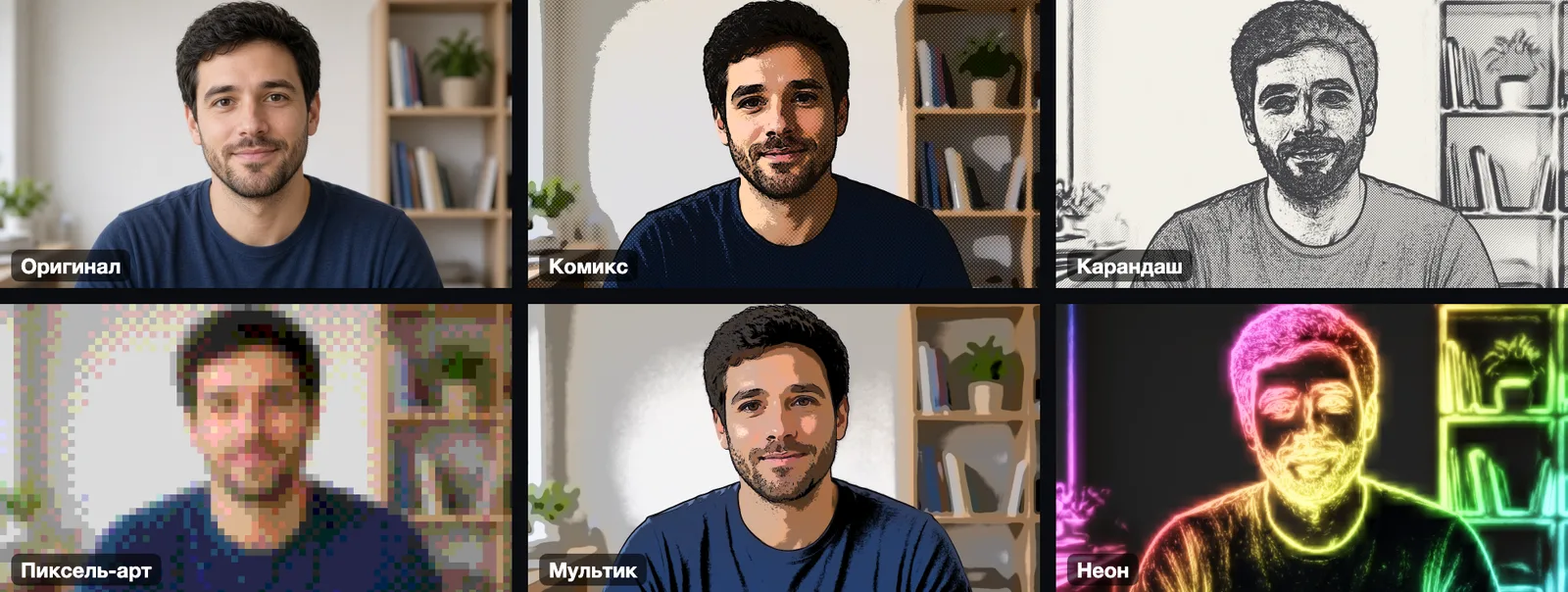
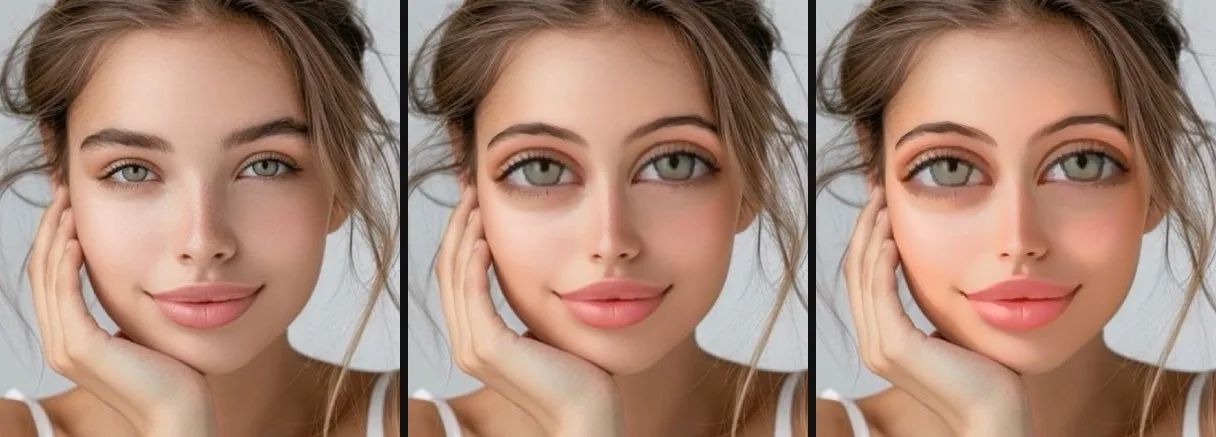
Comic, pencil, pixel art, cartoon and neon — your whole video in one artistic style.
Where: Studio → Camera → Frame style
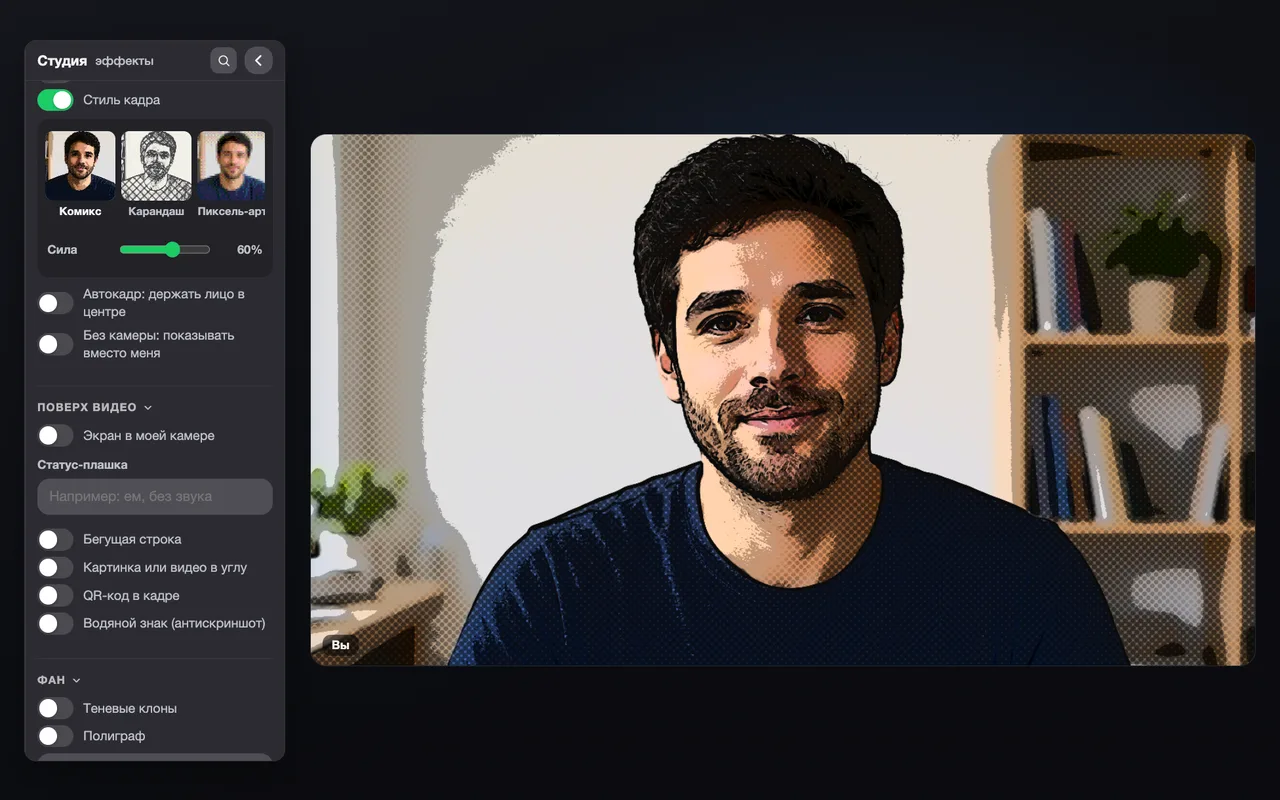
Six versions of one frame: original, comic, pencil, pixel art, cartoon, neonThe Comic style in the video and the style picker
Why it matters
Masks change your face; frame style changes the whole picture, background included. An easy way to lift the mood of a Friday call, style a stream or hide a messy room without blurring it.
How to use it
Turn on Frame styleA switch in the Camera group.
Pick a styleComic — crisp outlines and halftone dots, Pencil — a hatched sketch, Pixel art — a retro game, Cartoon — soft flat colors, Neon — glowing outlines on dark.
Set the strengthThe Strength slider blends the style with the original: from a light hint to a full transformation.
Tips
The style works together with backgrounds, masks and beauty.
Say in Russian:Пульт, стиль кадраПульт, комиксПульт, карандашПульт, пиксель артПульт, неон
👥Shadow clones
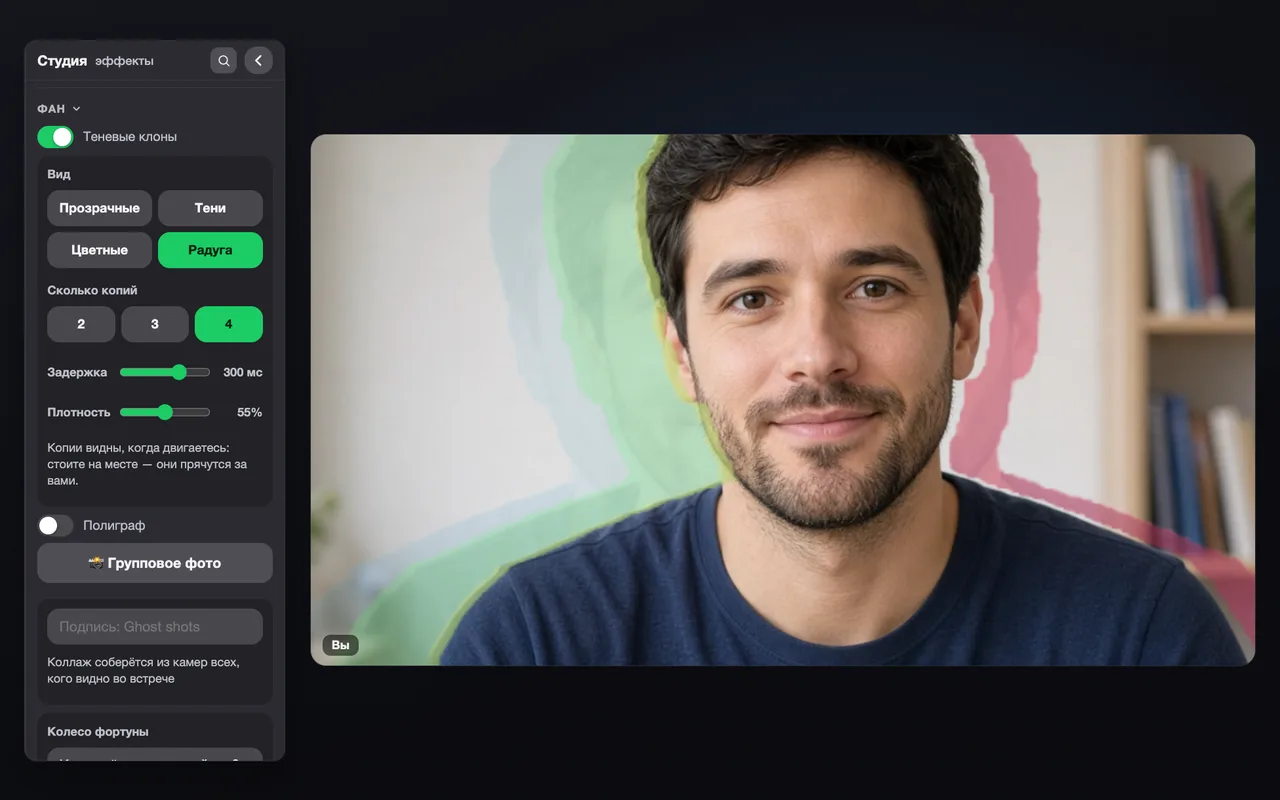
Delayed copies trail behind you — transparent, shadows, colored or rainbow. Every move becomes a trail.
Where: Studio → Fun → Shadow clones
Rainbow shadow clones: four colored copies repeat the movement with a delay
Why it matters
The effect from music videos and sports replays, right on a call. Great for demos, team building and streams: wave your hand and a trail follows it.
How to use it
Turn on Shadow clonesThe remote cuts you out of the frame the same way it does for background replacement.
Pick a lookTransparent — ghosts, Shadows — dark silhouettes, Colored — every clone its own color, Rainbow — a shimmering trail.
Tune the trail2, 3 or 4 copies; Delay — how far each copy lags behind; Density — how visible the clones are.
Tips
The longer the delay, the longer the trail: at 300 ms the effect shows even with small head movements.
Say in Russian:Пульт, клоныПульт, радужные клоныПульт, клоны тениПульт, прозрачные клоны
❤️Polygraph
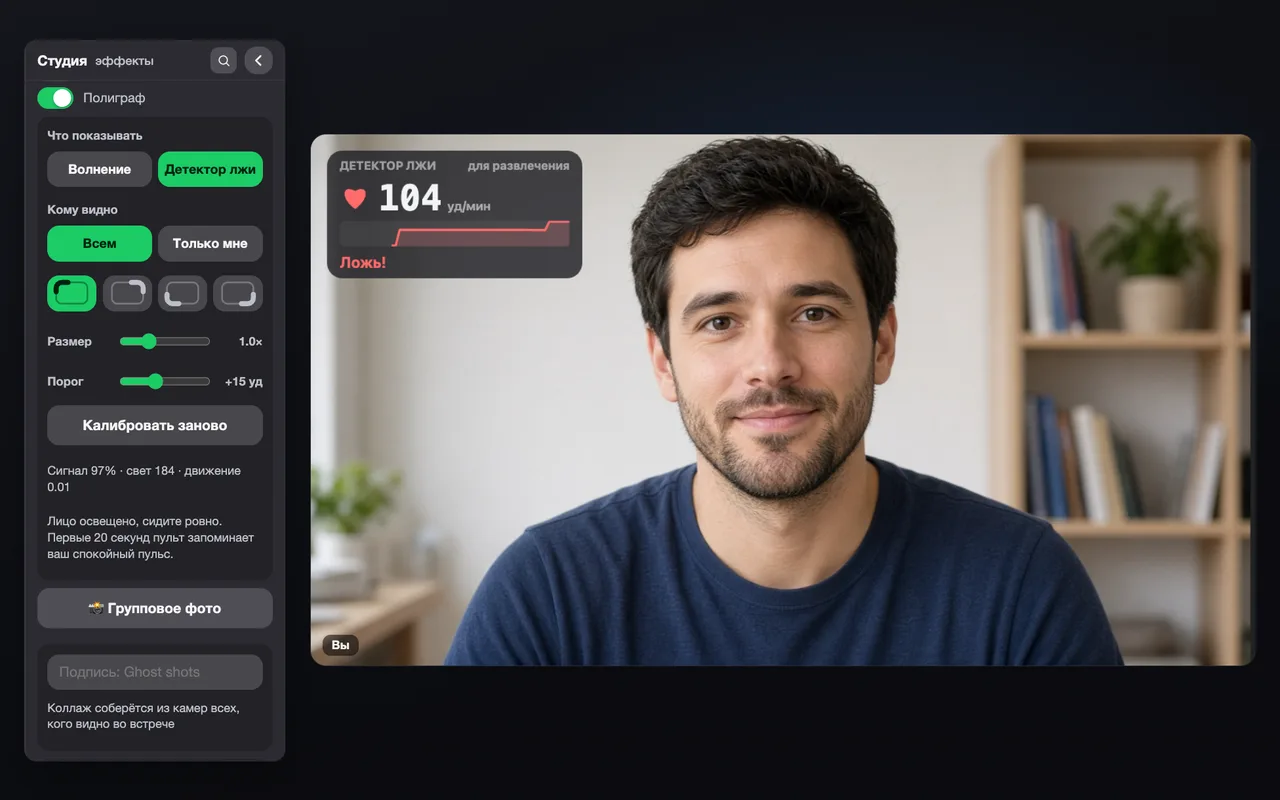
Your pulse from the camera in real time: an excitement meter or a “lie detector” that flashes “Lie!” when your heart speeds up.
Where: Studio → Fun → Polygraph
The polygraph in Lie detector mode: 104 beats per minute and the word “Lie!”
Why it matters
A camera can pick up barely visible changes in skin color with every heartbeat. The polygraph turns that into a game: “Did you really finish the task?” — and the whole team watches the meter. It is entertainment, not a medical device and not a real lie detector — but the reactions are great.
How to use it
Turn on PolygraphSit straight; your face should be well lit.
Wait for calibrationFor the first 20 seconds the remote learns your resting pulse. A hint below shows the signal, light and movement.
Pick a modeExcitement — a meter from calm to excited; Lie detector — the word “Lie!” when your pulse goes above the threshold.
Decide who sees itEveryone — a badge in your video; Only me — watch your pulse discreetly.
Tips
Threshold — how many beats your pulse has to rise for the detector to fire.
The badge corner and size are adjustable; Recalibrate — if you moved or the light changed.
Say in Russian:Пульт, полиграфПульт, детектор лжиПульт, шкала волненияПульт, откалибруй
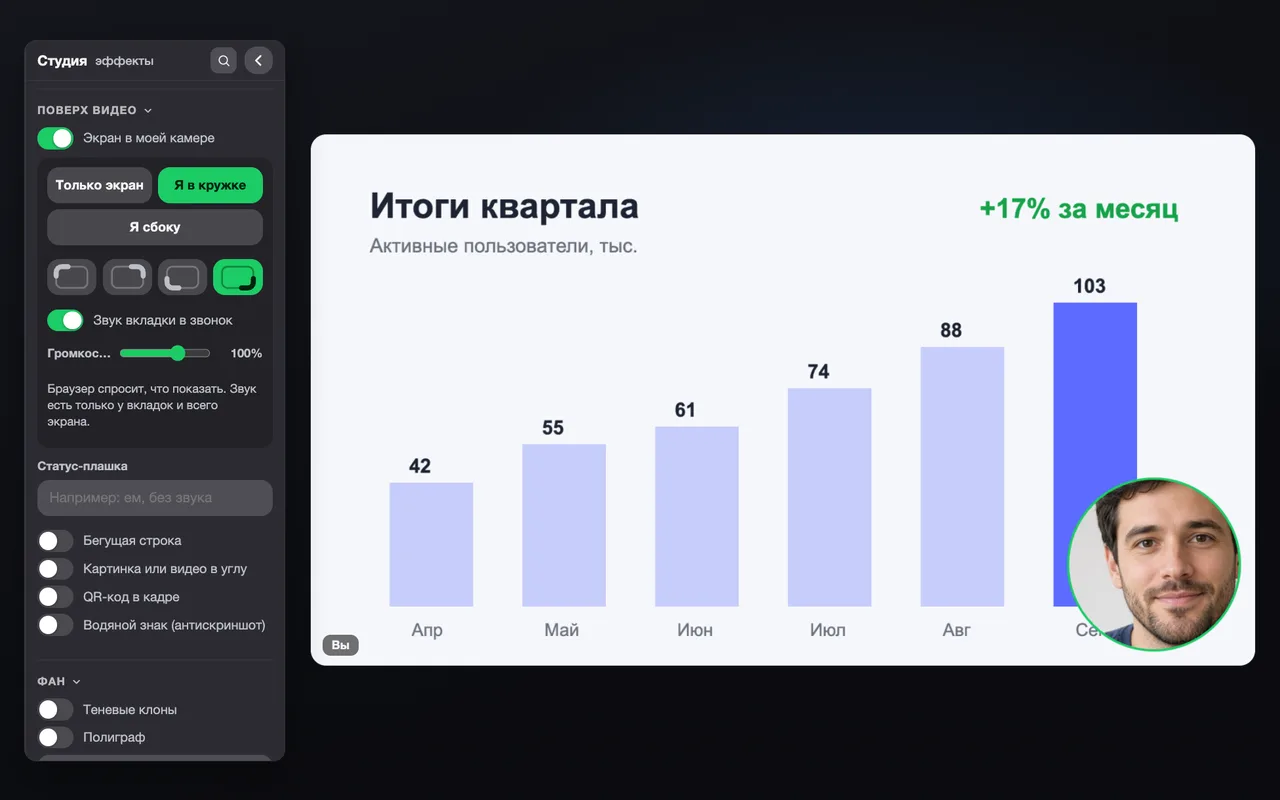
Show a tab or your screen right in your camera video — with yourself in a circle or at the side. The tab’s audio goes to the call.
Where: Studio → Over the video → Screen in my camera
A “Quarterly results” slide in the camera video, the presenter in a circle in the corner
Why it matters
Regular screen sharing hides your face, and some platforms do not allow guests to share at all. Here the screen goes through your camera: others see both the slide and you, like in a professional stream. It works on any platform where you can turn on a camera.
How to use it
Turn on Screen in my cameraThe browser asks what to show: a tab, a window or the whole screen.
Pick a layoutScreen only — across the whole video; Me in a circle — you in a round window on top; Me at the side — the screen and you next to each other.
Move the circle to a handy cornerFour corner buttons, so you do not cover anything important on the slide.
Turn on the audioTab audio to the call sends the sound of a video or presentation to the others; volume is a slider.
Tips
Audio is available for tabs and the whole screen — that is how browsers work.
Say in Russian:Пульт, покажи экранПульт, звук экрана
🖼️A picture or video in the corner — with sound
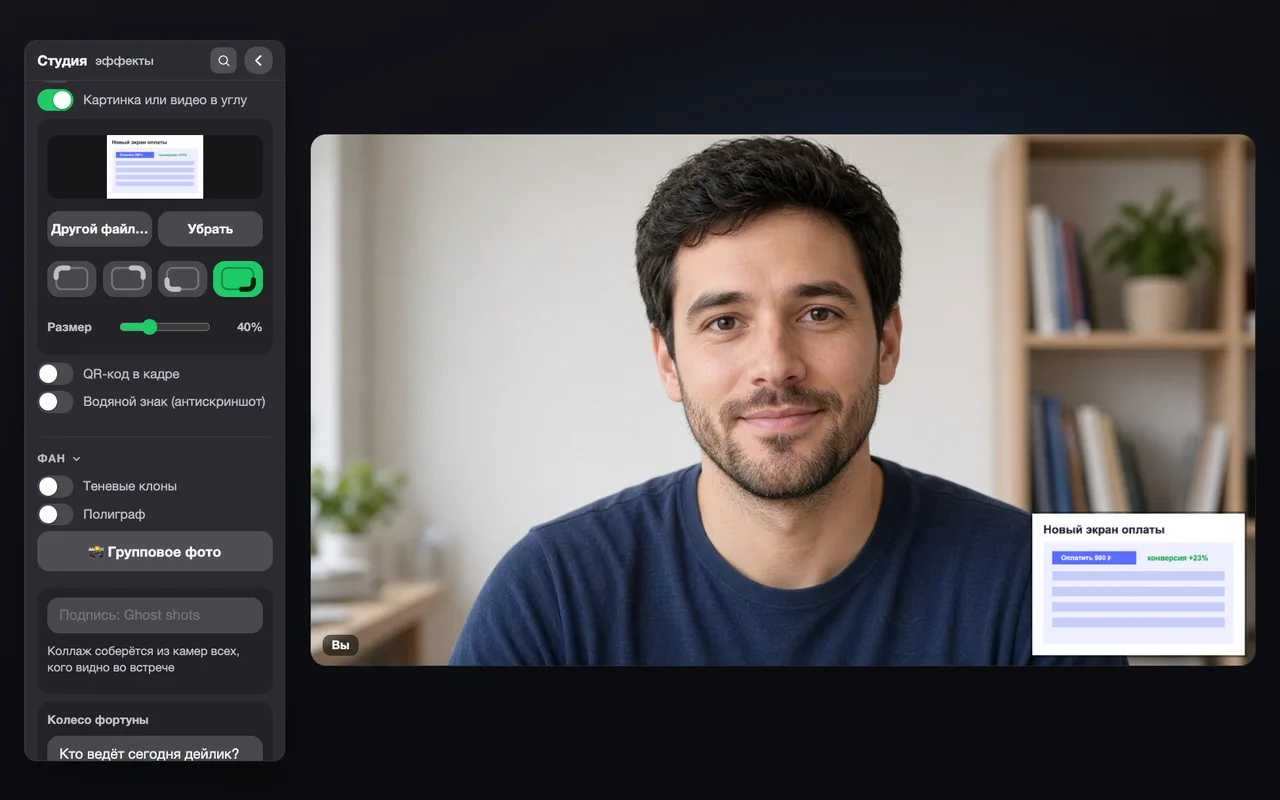
A mockup, a chart or a clip in the corner of your video. Videos play with sound — both you and the others hear it.
Where: Studio → Over the video → Picture or video in the corner
A “New payment screen” mockup in the bottom right corner of the video
Why it matters
Show a mockup, a fresh chart or a funny clip without starting screen sharing. The picture stays next to you while you talk about it.
How to use it
Choose a fileChoose file… — an image (PNG, JPG, GIF, WebP) or a video.
Put it in a cornerOne of four corners and a Size from 15% to 100%.
Turn on the video soundWith sound (to the call and to me) and Volume. Pause stops the clip.
Tips
The ✌️ gesture shows and hides the picture when hand gestures are on.
Say in Russian:Пульт, картинкаПульт, видео в углуПульт, звук видеоПульт, играйПульт, пауза
🪪No camera: a business card, an avatar or a splash screen
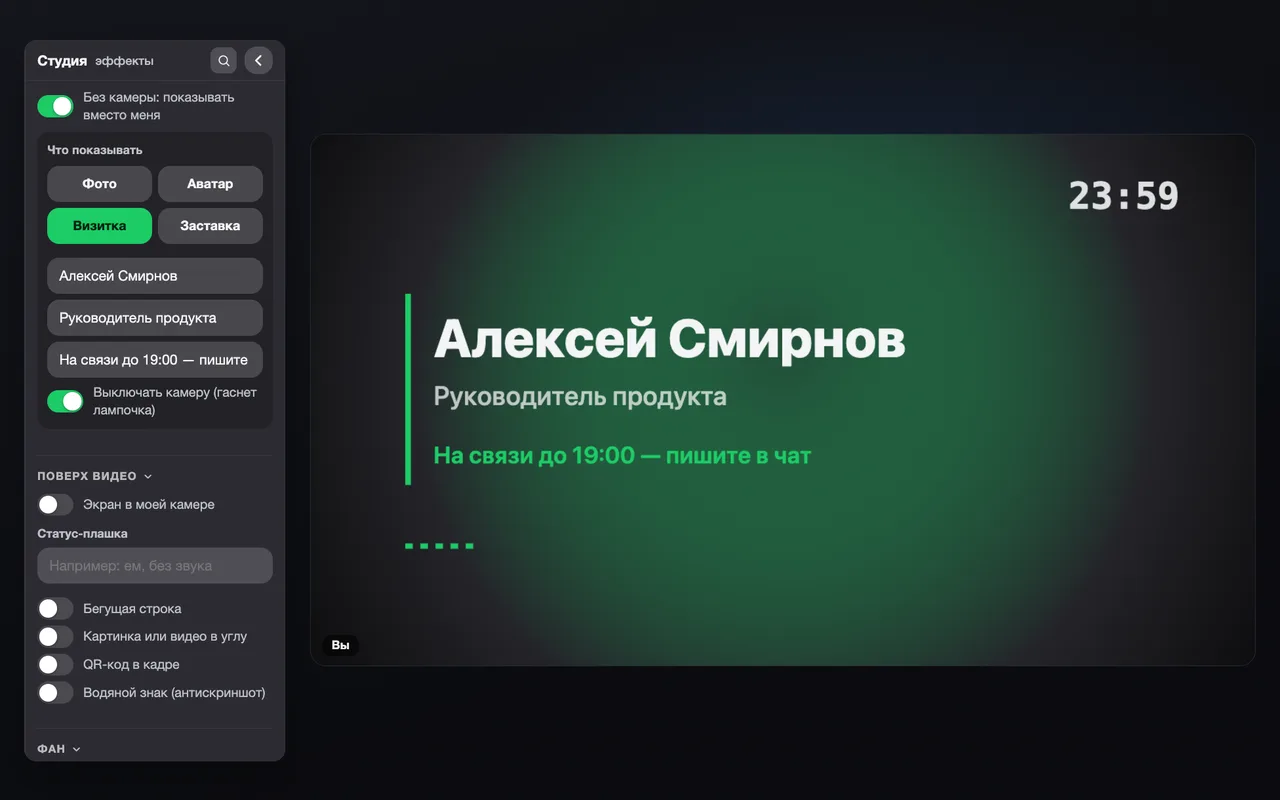
The camera is off, but instead of a black square there is your photo, a 3D avatar, a card with your name and role or a “be right back” screen.
Where: Studio → Camera → No camera: show instead of me
A business card instead of the camera: name, job title and “Available until 7 pm”
Why it matters
A black square with initials looks as if you are not there. A card tells right away who you are and when you are available, and Turn off the camera honestly switches off the light — the camera really stops recording.
How to use it
Turn on the modeNo camera: show instead of me.
Choose what to showPhoto — your picture; Avatar — a 3D head; Card — name, role and a note; Splash — “be right back”.
Fill in the cardName, job title and a note like “Available until 7 pm — message me in the chat”.
Switch off the cameraTurn off the camera (the light goes out) physically stops the camera while the mode is on.
Say in Russian:Пульт, без камерыПульт, визиткаПульт, заставкаПульт, скоро вернусьПульт, аватар
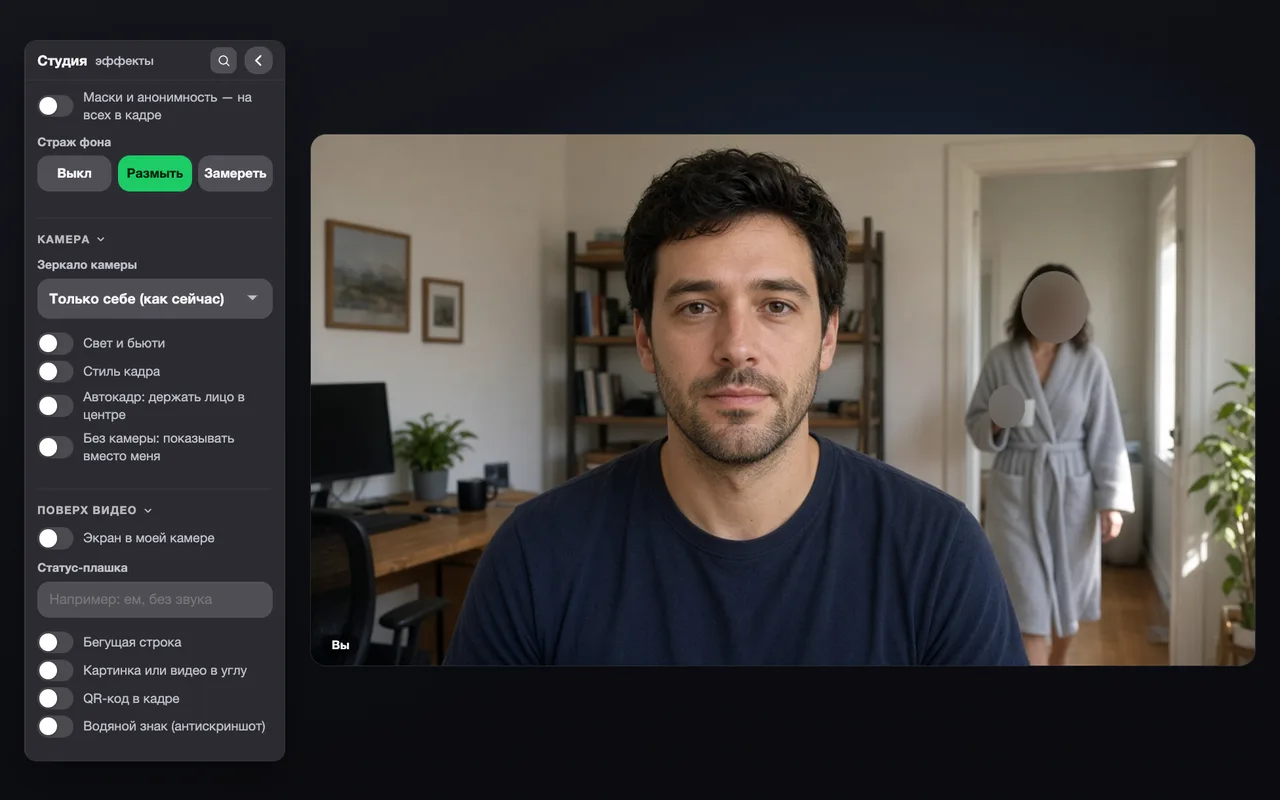
Someone walks into the room behind you — their face blurs automatically or the frame freezes. Nothing extra goes on air.
Where: Studio → Background and masks → Background guard
Background guard: the face of a person in the doorway behind is blurred, the main frame is untouched
Why it matters
Family members, open-space colleagues or café guests never agreed to be in your call. The guard watches the frame and hides every face except yours — even small and distant ones deep in the room.
How to use it
Pick a modeBlur — other faces get blurred; Freeze — the frame holds the last “clean” moment until the stranger leaves; Off — the guard sleeps.
Work as usualThe guard leaves your own face alone: it only hides people farther from the camera.
Tips
Pairs well with background blur: the background is soft and the faces behind you are surely hidden.
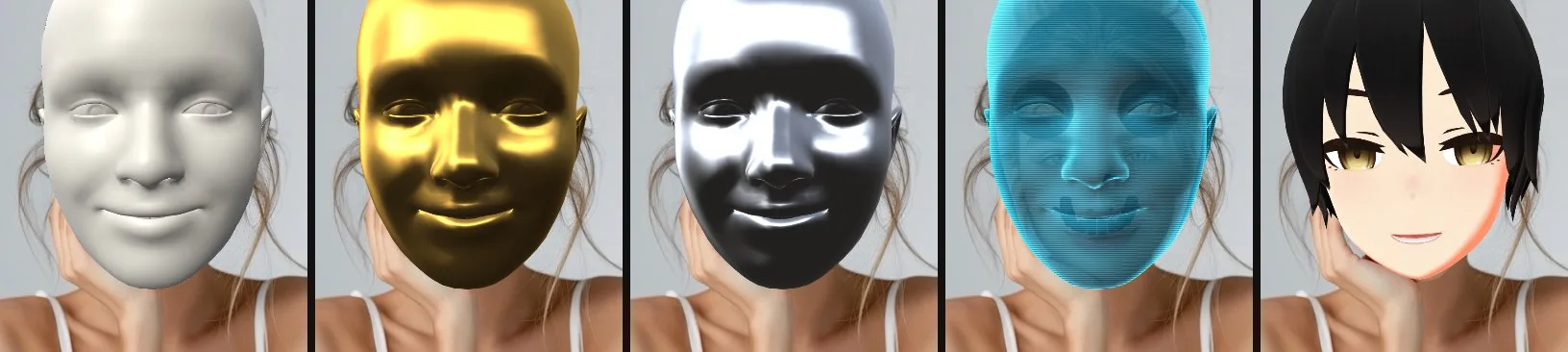
Masks, avatars and anonymity land on every face in the frame, and all hands can draw in the air at once.
Where: Studio → Background and masks → Masks and anonymity for everyone in the frame; Hands → All hands in the frame draw
Why it matters
A call from a meeting room or two people at one laptop: a mask used to land on one face only. Now everyone in the frame gets glasses, an avatar or pixelation, and you can draw with your fingers together.
How to use it
Turn on For everyone in the frameHow many faces appears under the switch — from 2 to 10.
Pick a mask or anonymityAny 2D or 3D mask and any anonymity mode applies to every face.
Draw togetherIn the Hands group, turn on All hands in the frame draw.
Tips
When it is off, the effect is only on you: on the face closest to the camera.
Say in Russian:Пульт, маски на всехПульт, все руки
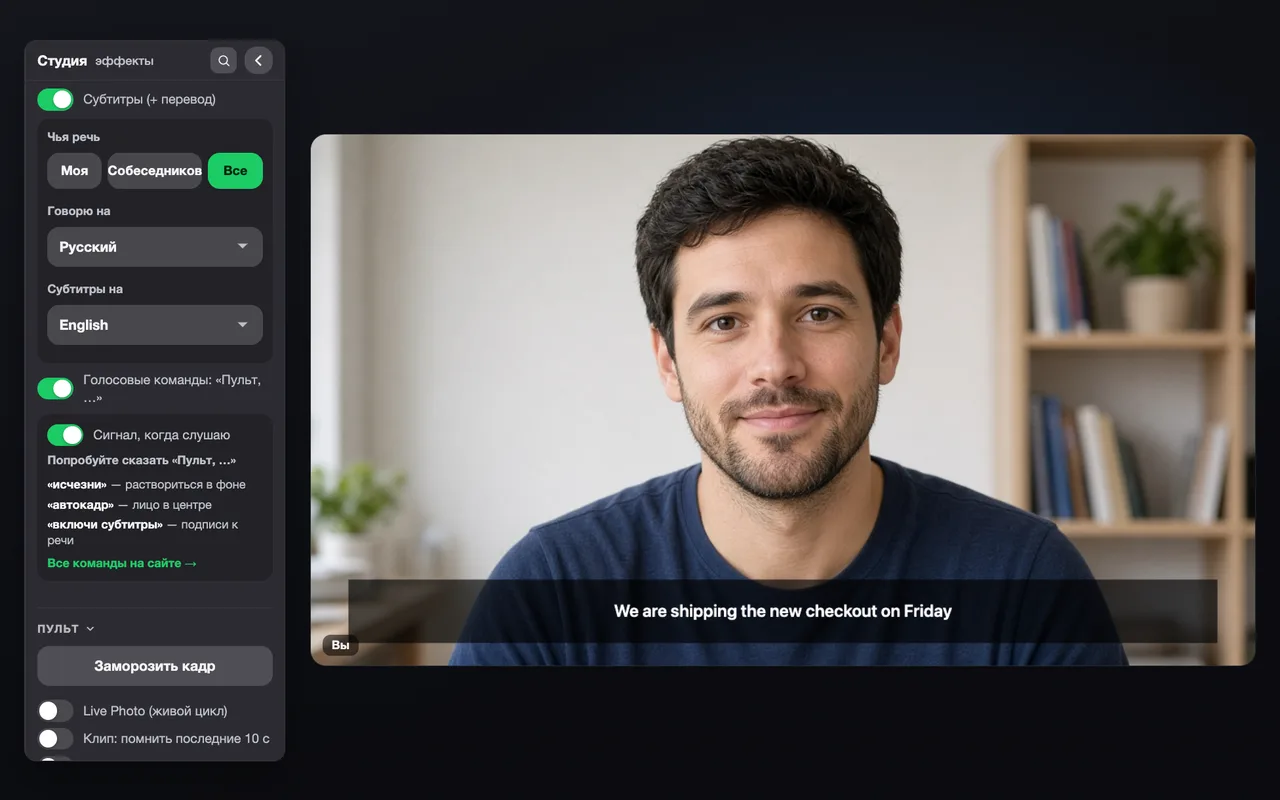
Captions and translation now work for the other participants too: choose Mine, Others or Everyone.
Where: Studio → Voice → Captions (+ translation)
Captions translated into English in the video and the “Whose speech: Everyone” choice
Why it matters
Captions used to listen to your microphone only. Now the remote separately listens to the call audio and captions the other participants — translated into your language. A foreign colleague speaks English — you read your own language.
How to use it
Turn on captionsThe Captions (+ translation) switch.
Choose whose speech to captionMine — your microphone, Others — the call audio, Everyone — both sides.
Set the languagesI speak and Captions in — if the languages differ, captions are translated.
Tips
Needs Chrome 135+ or a recent Chromium browser with built-in speech recognition. Firefox has no captions.
Say in Russian:Пульт, субтитрыПульт, включи субтитры
Say “Pult, vanish” or “Pult, spin the wheel” in Russian — your hands stay free and the panel can stay closed.
Where: Studio → Voice → Voice commands “Pult, …”
Why it matters
When you are at a whiteboard, holding a mug or showing something to the camera, reaching for the mouse is awkward. Almost any feature of the remote turns on by voice: switches, buttons and tiles.
How to use it
Turn on voice commandsA short beep that only you hear — the remote waits for the word “Pult” (Russian for “remote”).
Say “Pult” and a command“Pult, vanish”, “Pult, auto frame”, “Pult, turn on captions”. Next to the remote button you can see which words it heard.
Answer a follow-upIf a command sounds like two features, the remote asks back: “the first or the second?”.
Tips
Understands “turn on / turn off” and the names exactly as the panel shows them, plus casual variants: “blur the background”, “photo of everyone”, “silence”.
Forgives slips of the tongue and imprecise recognition.
The full list of commands is on a separate page.
Say in Russian:Пульт, исчезниПульт, вернисьПульт, автокадрПульт, крути колесоПульт, размой фон
Zoom in with a pinch or bring an object up to the camera — the remote zooms on its own. Auto frame keeps your face larger.
Where: Studio → Hands → Gesture zoom; Camera → Auto frame
Why it matters
Show a tiny detail, a label or a phone screen — without buttons or camera apps. And auto frame now keeps your face close by default, like in a studio.
How to use it
Turn on Gesture zoomPinch mode: bring your thumb and index finger together — the distance between them works as a slider, from 1× when they touch to 3× fully open. The zoom stays when your hand leaves the frame.
Or show an objectObject in hand mode: raise your hand with an object and hold it — the camera moves in and follows it, and comes back when you lower your hand.
Choose the zoomLoose, Medium or Close — how near the camera moves in.
Reset the frameReset zoom, or say “Pult, reset the frame”.
Say in Russian:Пульт, зумПульт, показываю предметПульт, сбрось зумПульт, верни кадрПульт, автокадр
🧭New panel: groups, pinning, search
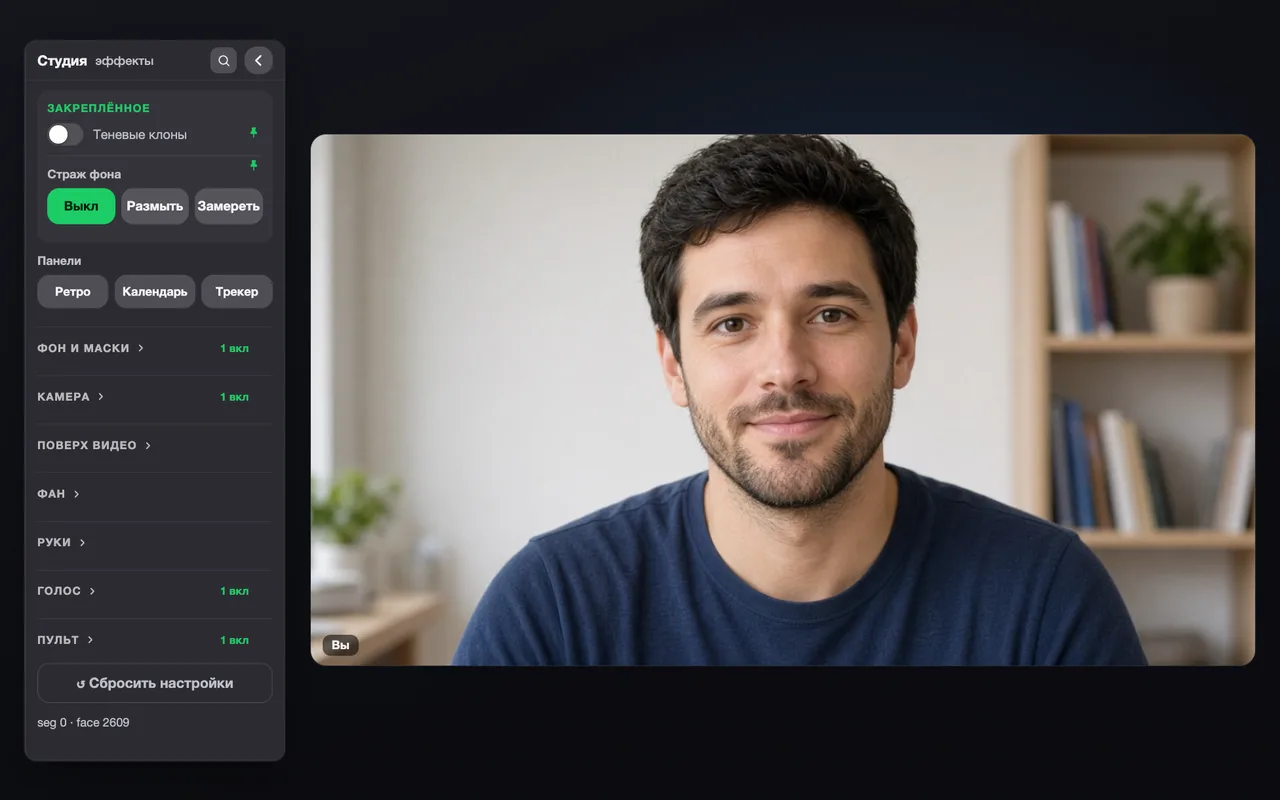
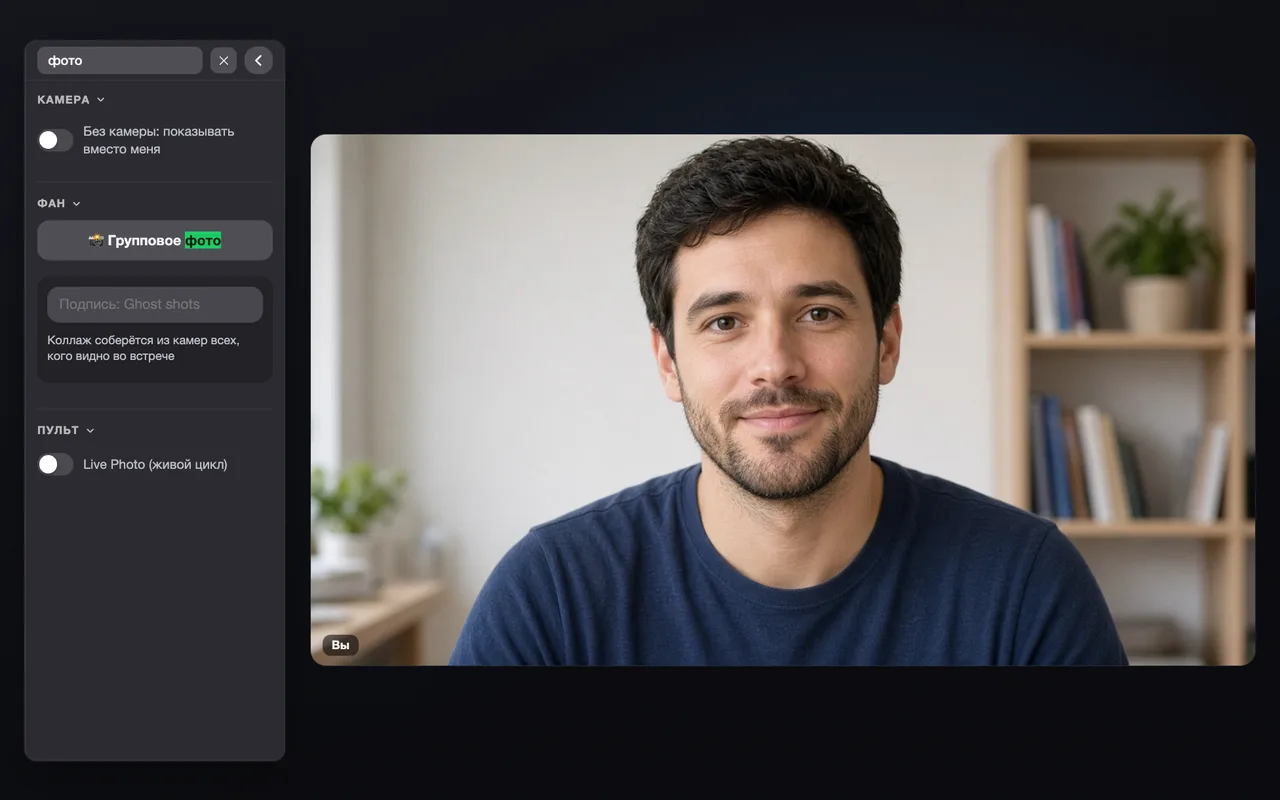
Features are sorted into groups, favorites are pinned on top, and “/” search finds any feature even with a typo.
Where: Remote → Studio
Collapsed panel groups with “1 on” labels and the Pinned block on topPanel search: the word “photo” finds No camera, Group photo and Live Photo
Why it matters
There are many features now, and one long list got in the way. Now everything is grouped by meaning: Background and masks, Camera, Over the video, Fun, Hands, Voice, Remote. A collapsed group shows how many features in it are on.
How to use it
Collapse groupsClick a group header. The “N on” label reminds you that something inside is running.
Pin your favoritesHover over a feature and click the pin — it moves to the Pinned block on top.
SearchPress “/” or the magnifier and start typing: misspelled “wheel” or “captions” still find them. Enter jumps to the first match, Esc closes the search.
Tips
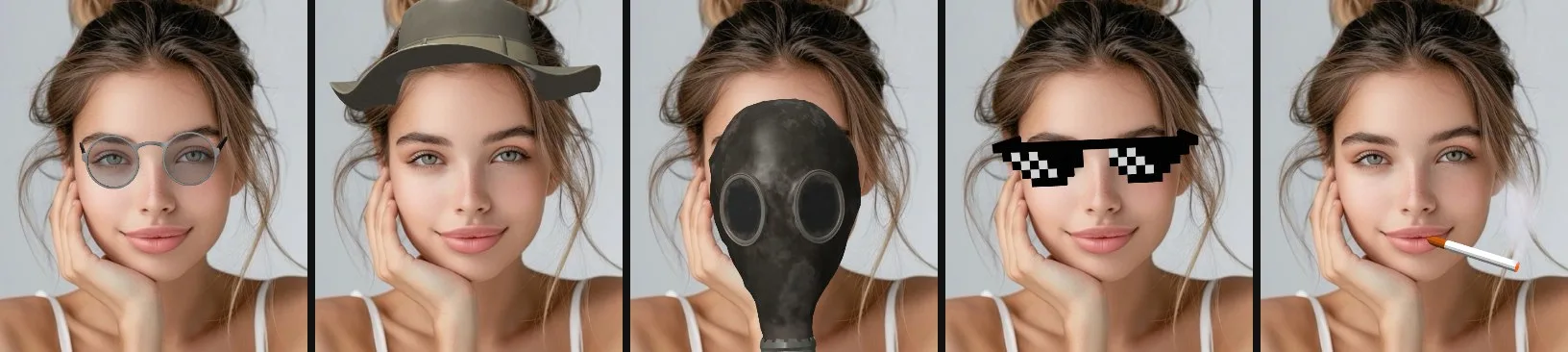
Search also understands voice synonyms like “cigarette”, “Thanos” or “card”.
Also
A new platform — Vizavi: its own remote button in the call toolbar.
The wheel and the group photo work on every platform: participants are taken from the call cameras.
A refreshed wheel result badge with confetti and separate sounds for spinning and the finale.
Faster face search: the guard notices even distant and small faces.
6.0
One remote — 31 platforms
Telepult.Web became one extension for all web calls: Zoom, Google Meet, Teams, MTS Link, Discord, Slack and two dozen more platforms. Plus studio tiles, beauty, a teleprompter and Live Photo.
🌐
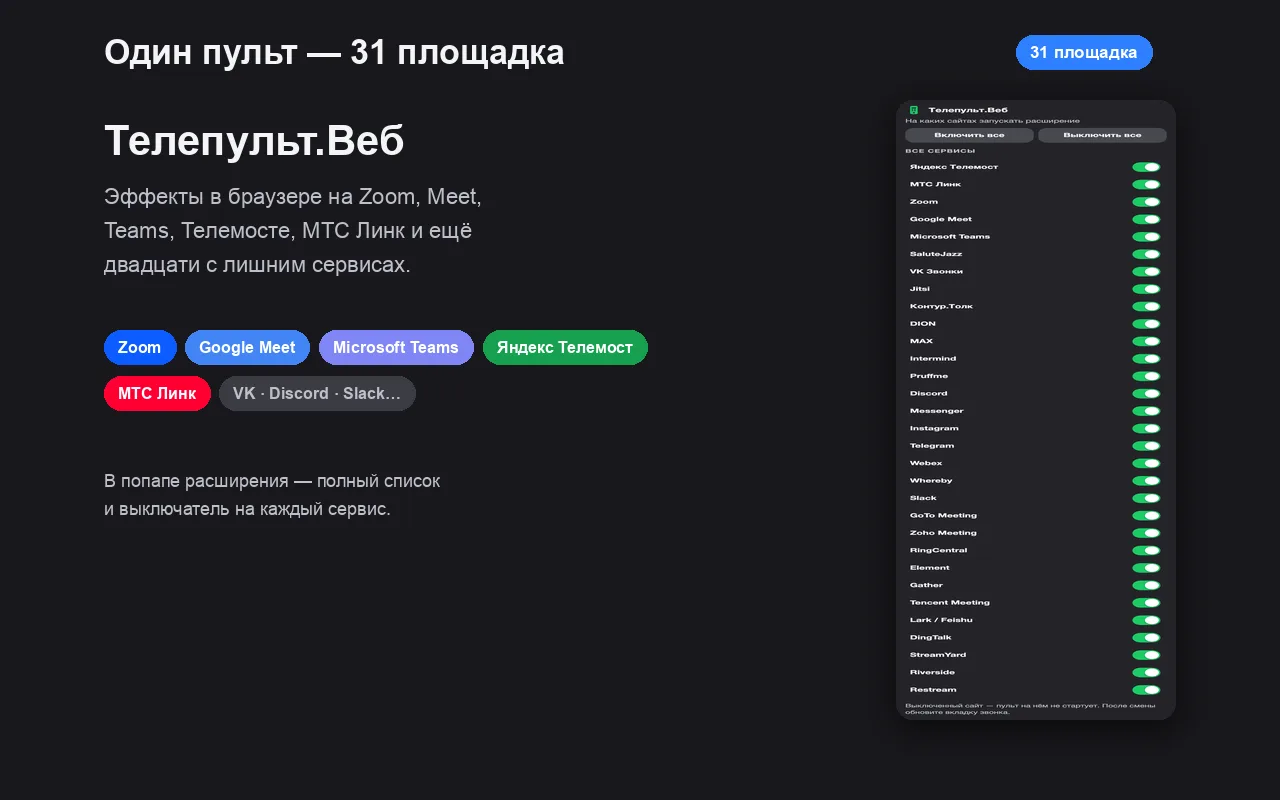
31 platforms for video calls
Zoom, Meet, Teams, MTS Link, Discord, Slack and other web calls in one extension — not just Telemost. One remote for every call: your team is on Telemost, a client invites you to Zoom and the community hangs out on Discord. Settings and effects are the same everywhere.
The list of platforms in the extension popup
🗂️
Service catalog in the popup
Turn any platform on or off from the extension icon — no reinstall needed.
🧩
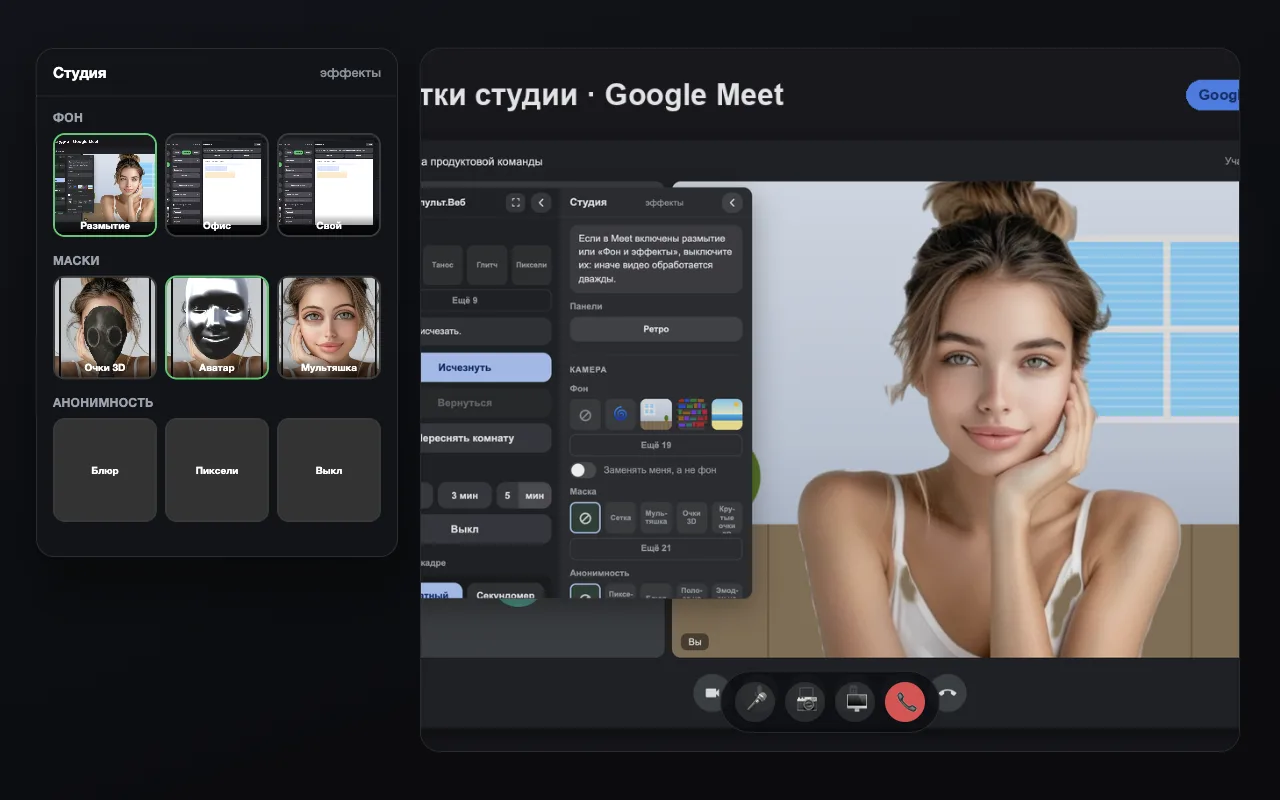
Studio tiles
Backgrounds, masks and anonymity are picked from previews instead of long lists.
Studio tiles: backgrounds, masks and anonymity as previews
Telepult.Web installs in a minute: Chrome, Edge, Opera, Brave, Yandex Browser and other Chromium browsers — from the Chrome Web Store. There is a Firefox version too.
 Telepult.Web