 Telepult.Web
Live Photo instead of a frozen frame
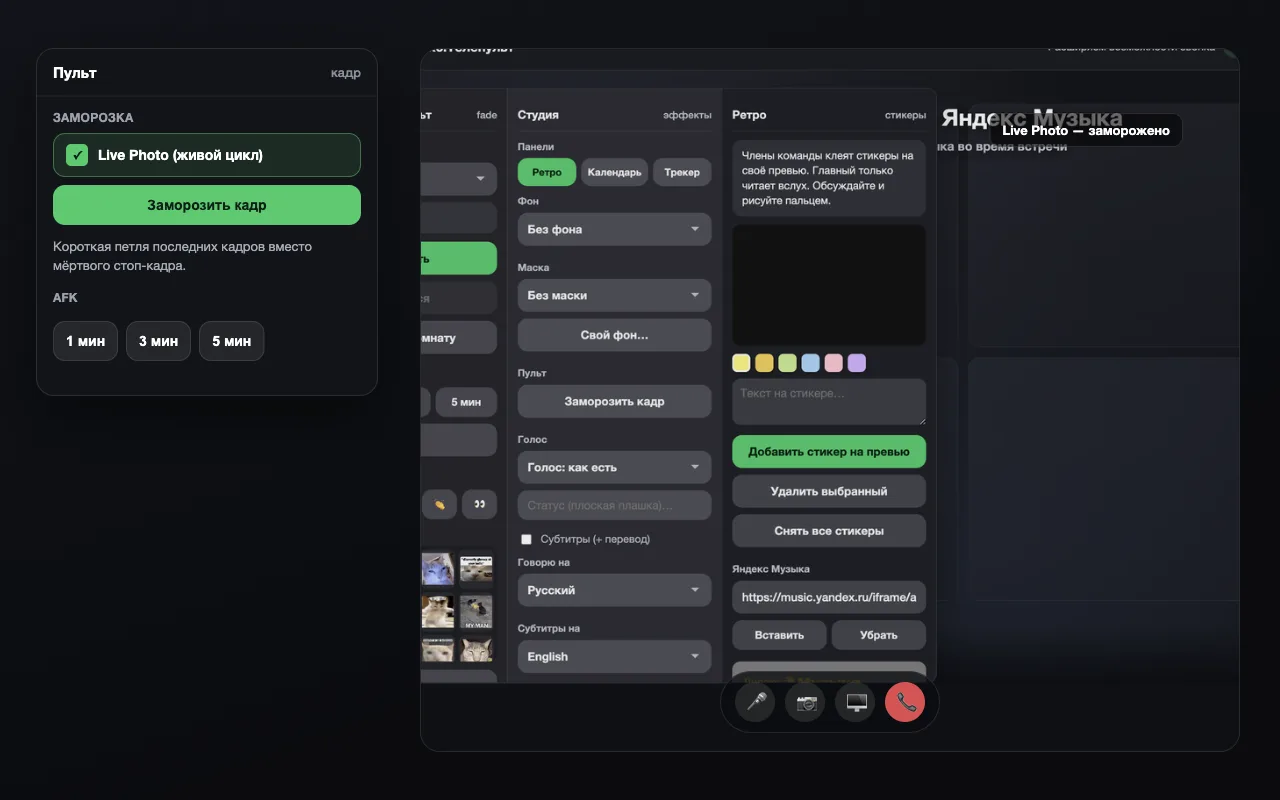
A regular freeze leaves a motionless picture, and people notice. Live Photo keeps a short live loop of the latest frames: you are “still there”, but the picture does not look like a screenshot.
Step by step
- Install the extensionAdd Telepult.Web from the Chrome Web Store — in Chrome, Edge, Opera, Brave, Yandex Browser or another Chromium browser that supports Chrome extensions. It is free. Firefox has a separate build on addons.mozilla.org.
- Open a meetingOpen a meeting on any supported platform (Zoom, Meet, Teams, Telemost, MTS Link and others) and turn on your camera. The remote button appears — in the call toolbar or as a floating button.
- Turn on Live PhotoTick Live Photo (live loop) in the remote.
- Freeze the framePress freeze when you need to step away. The same button unfreezes it.
How it differs from a regular freeze
Without Live Photo a single frame stays on screen. With Live Photo a short loop of recent video plays — facial expressions and slight movement remain.
When vanishing is better
If you need to leave the frame completely, capture the room and press Vanish. Live Photo is for when you want to stay “in the frame” but look away for a second.
Try it for free
Telepult.Web installs in a minute: Chrome, Edge, Opera, Brave, Yandex Browser and other Chromium browsers — from the Chrome Web Store. There is a Firefox version too.
Install from the Chrome Web StoreFAQ
Do the others see it?
Yes, the processed picture is what goes into the video stream.
Does it work on every platform?
Yes, wherever the remote is available.