 Telepult.Web
A teleprompter on a video call
Need to speak from a script but do not want to read from paper on camera? The Telepult.Web teleprompter shows scrolling text only to you — it is not in your video stream.
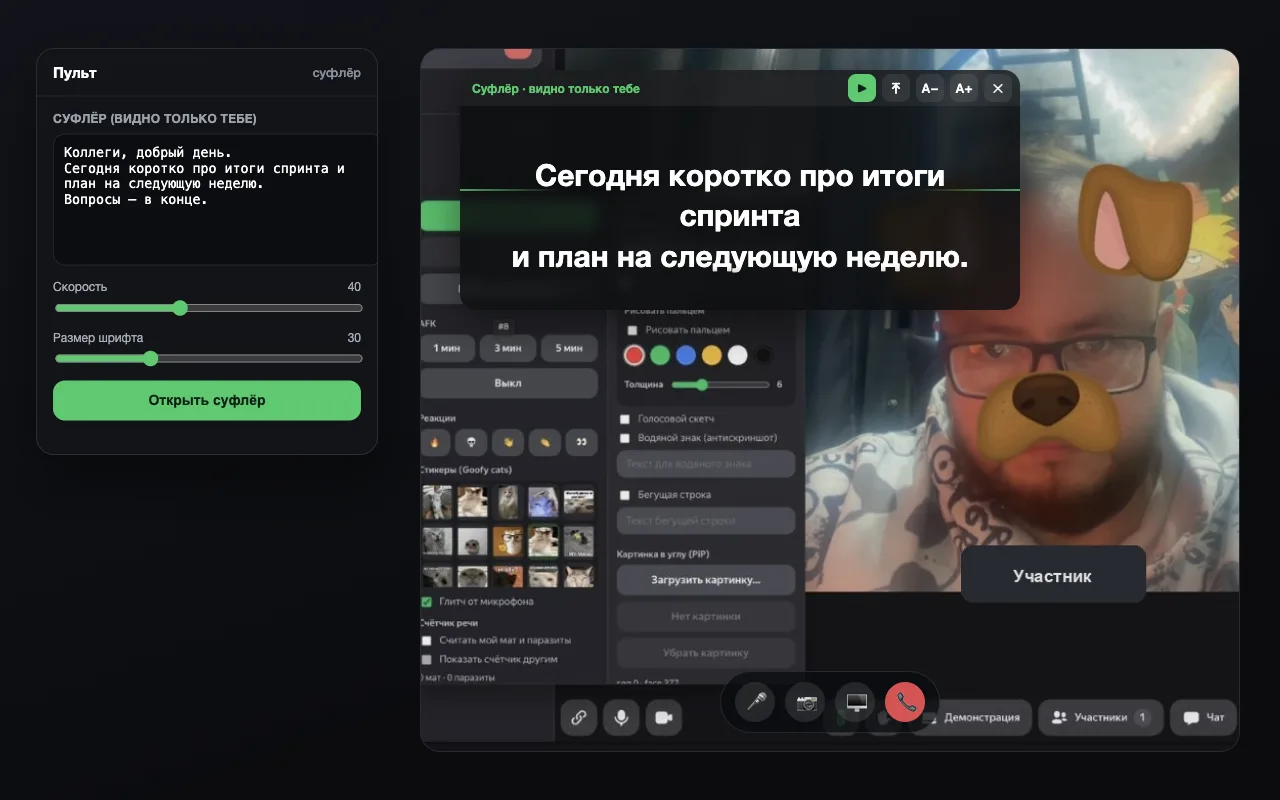
Step by step
- Install the extensionAdd Telepult.Web from the Chrome Web Store — in Chrome, Edge, Opera, Brave, Yandex Browser or another Chromium browser that supports Chrome extensions. It is free. Firefox has a separate build on addons.mozilla.org.
- Open a meetingOpen a meeting on any supported platform (Zoom, Meet, Teams, Telemost, MTS Link and others) and turn on your camera. The remote button appears — in the call toolbar or as a floating button.
- Open the Teleprompter blockFind the Teleprompter section in the remote and paste your script.
- Start and adjustPress Open teleprompter. Use the sliders to set the scrolling speed and the font size.
Who sees the text?
Only you. The teleprompter is drawn over the interface in your browser and never gets into the video stream — the others see your usual video.
Settings
- Scrolling speed
- Font size
- You can edit the text while you prepare to speak
Try it for free
Telepult.Web installs in a minute: Chrome, Edge, Opera, Brave, Yandex Browser and other Chromium browsers — from the Chrome Web Store. There is a Firefox version too.
Install from the Chrome Web StoreFAQ
Will the teleprompter show up in a recording?
No. The text is not part of your video stream.
Does it work on every platform?
Yes, on every supported web platform where the remote is available.
Does the teleprompter need the internet?
There is no server behind it: the text is stored and scrolled locally in the browser.